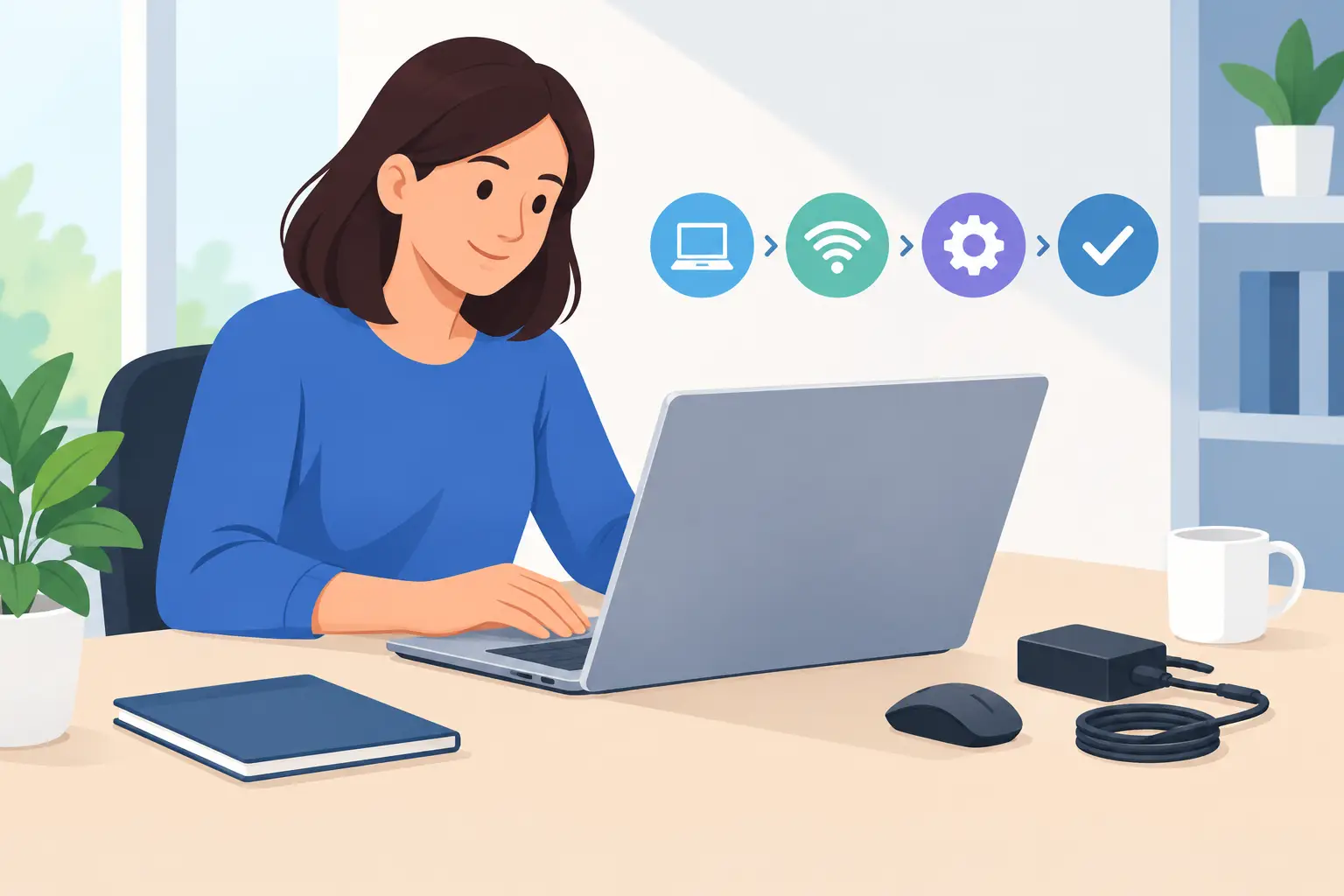
A new computer should feel like a fresh start, not a full-day project with pop-ups, passwords, and settings you are afraid to change. If you need help setting up new computer equipment, the best approach is to handle the essentials in the right order: protect the device, get it updated, move only the files you need, and make sure it is ready for your real routine.
Whether the computer is for home, a small business, remote work, or school, a careful first setup prevents a lot of frustration later. You do not need to be a technology expert. You just need a sensible plan.
Start With the Basics Before Adding Anything
Set the computer up in the place where it will normally be used. Plug it directly into a reliable power source, connect the monitor and keyboard if it is a desktop, and make sure your internet connection is available. If you are using Wi-Fi, have the network name and password nearby before you begin.
During the first startup, the computer will ask for a region, keyboard layout, internet connection, and account information. Take your time here. It is easy to rush through these screens, but choices such as the main user account and recovery options matter later.
For a personal computer, use an account that only you control. For a household or business computer shared by several people, create separate user accounts instead of having everyone sign in with one password. Separate accounts keep documents, browser history, email, and saved passwords from becoming mixed together.
Use a strong sign-in password or passphrase. A longer phrase you can remember is often better than a short, complicated password written on a sticky note. If the computer supports a PIN, fingerprint reader, or face sign-in, turn it on after you have established the main password.
Update the Computer Before You Move Your Files
The computer may be new, but its software may not be current. It may have spent months in a warehouse before reaching your desk. Operating system updates can fix security issues, improve reliability, and update drivers for Wi-Fi, printers, displays, and other hardware.
Run the available system updates before installing a long list of programs. Expect this to take some time and possibly require more than one restart. That is normal. Keep the computer connected to power and the internet until the update process is finished.
After the system updates, check for updates to the web browser and any programs that came with the computer. If you use Microsoft 365, Google Workspace, accounting software, security software, or a business-specific application, install it from the official source and sign in with the account you already use.
Avoid downloading programs simply because a pop-up says your device needs a cleaner, faster driver, or urgent protection. New computers often attract misleading ads and unnecessary utility software. If you are unsure whether a program is legitimate, stop before entering payment information or granting access to the device.
Remove What You Will Not Use
Many new computers include trial software, games, retailer offers, and manufacturer utilities. Some are useful, but plenty are not. Removing the programs you know you will never use can make the computer less cluttered and reduce distracting notifications.
There is no need to delete everything at once. If you do not recognize an item, leave it alone until you can confirm what it does. Removing the wrong driver or system utility can create more work than a few extra icons.
Set Up Security That Fits Your Situation
Security is not one setting. It is a few practical habits working together. Start by turning on automatic updates, using a strong account password, and enabling the built-in firewall and security protection included with the operating system.
Next, turn on multi-factor authentication for important accounts such as email, banking, cloud storage, and business systems. Your email account deserves special attention because it is often the key to resetting passwords for other services. A password manager can also help you create and store unique passwords without trying to remember every one.
Backups belong in the first-day setup, not after a computer problem. You have two common options: cloud backup or an external drive. Cloud storage is convenient for files you need across devices, while an external drive can give you a local copy of larger folders and important records. For many people, using both is the safest choice.
The trade-off is cost and convenience. Cloud services usually require an ongoing subscription once you need more space, while external drives must be plugged in and checked from time to time. What matters most is having a copy of your important files that is not stored only on the computer.
Move Files Carefully, Not All at Once
When replacing an older computer, start with the files that would be difficult to recreate: documents, photos, spreadsheets, tax records, saved projects, and business folders. Confirm that they open correctly on the new computer before assuming the transfer is complete.
Do not copy every old folder just because it exists. Old downloads folders often contain duplicate files, outdated installers, and years of clutter. A new computer is a good chance to bring over what you use and archive the rest.
Email can be more complicated. If you use webmail, such as Gmail or Outlook.com, your messages are usually available once you sign in. If your email was stored only inside an older desktop email program, it may need to be exported and imported. This is one area where getting help early can prevent lost messages or missing contacts.
Browser bookmarks, saved passwords, and extensions can often sync when you sign in to the same browser account. Still, check the result. Make sure your bookmarks are present, your preferred homepage is set, and any business web tools you depend on are working normally.
Make the Computer Work for Your Day
A properly configured computer should support your routine rather than make you adapt to its defaults. Set your time zone, display scaling, screen brightness, and sleep settings. Larger text and a more comfortable display scale can make a major difference if you read documents for long periods.
Set up your printer only after the computer is updated. Use the printer manufacturer's current software or the operating system's printer setup tool. Print a test page, then scan a document if your printer has scanning features. It is much easier to solve a printer issue before you urgently need to print a form or invoice.
For home users, install the programs you genuinely use: a browser, office software, video calling tools, photo software, and any streaming or communication apps you prefer. For a small business, add the tools that keep work moving, such as accounting software, scheduling platforms, remote access tools, and secure file storage.
Take a few minutes to organize the desktop and taskbar. Keep frequently used programs easy to find, but do not cover the desktop with every shortcut available. A simple layout saves time every day.
When to Get Help Setting Up a New Computer
Some setup tasks are straightforward, but others are worth handing to someone who can verify they were done correctly. Professional help can be especially useful when you are transferring years of files, setting up a new business computer, connecting multiple devices, configuring email, or making sure backups are actually running.
It is also smart to ask for help if the new computer will handle client information, financial records, medical documents, or other sensitive data. The goal is not just to get the computer turned on. It is to know that the right accounts, security settings, and file protections are in place.
Tech Guy Ryan can provide direct, practical support when you would rather have a real person handle the details or explain them in plain language. Getting answers early is usually faster than trying several random fixes after something stops working.
A new computer does not need to be perfect on day one. Get the essentials right, use it for a few days, and make small adjustments as you notice what would make your work or home routine easier. That is how it becomes your computer, not just a new device on your desk.