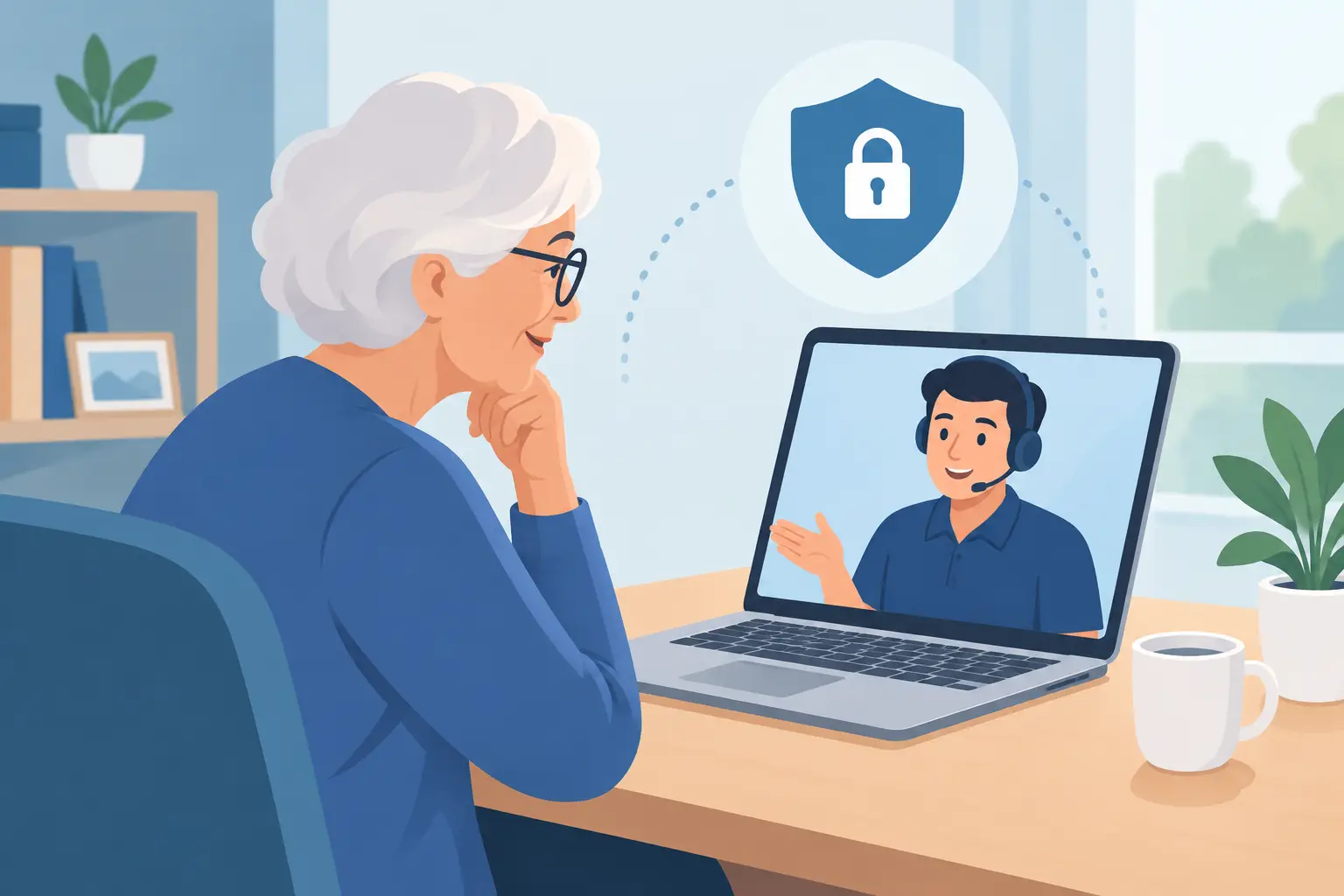
A computer problem can feel much bigger when it interrupts a video call with family, locks someone out of email, or puts an alarming message on the screen. Remote computer help for seniors can solve many of those problems without packing up a desktop computer or waiting at a repair counter. The right kind of help is calm, clear, and always puts the customer in control.
Remote support is not about taking over a computer and speaking in technical terms. It is about having a real person explain what is happening, fix what can be fixed, and leave the computer easier to use than before. For many seniors, that direct access matters as much as the repair itself.
What Remote Support Can Actually Help With
A surprising number of everyday computer issues can be handled remotely. Slow performance, printer trouble, software updates, email setup, web browser problems, pop-up messages, password questions, and video-call settings are all common examples. A technician can often see the issue with permission, talk through the options, and make adjustments while the customer watches.
Remote help is especially useful for problems that do not require a new physical part. If a laptop needs a replacement battery, has a cracked screen, will not turn on, or has suffered liquid damage, an in-person repair may be the better choice. The same is true when an internet connection is completely down. A technician may still be able to offer guidance by phone, but cannot remotely connect to a computer that is offline.
That distinction is useful. Good technical support does not force every issue into a remote session. It starts by identifying the problem and choosing the simplest sensible next step.
Why Remote Computer Help for Seniors Works
The biggest benefit is convenience. A desktop can stay where it is. A senior does not need to arrange transportation, disconnect cables, or try to describe a complicated error message from memory at a store counter. Help can happen from the comfort of home, with the actual device and problem right in front of everyone.
It can also be more personal than a typical support line. Instead of moving through a long automated menu, the customer can ask questions as they come up. A patient technician can slow down, explain a screen in plain English, and make sure the person knows what changed.
There is a confidence benefit too. Technology becomes less intimidating when someone shows you how to find the settings menu, recognize a legitimate update, or join a family video call. The goal should not be to make a customer dependent on support for every small question. It should be to make routine tasks feel more familiar the next time.
Safety Comes Before Screen Sharing
Remote access is useful, but it also requires trust. Scammers know this, which is why they often use fake virus warnings, urgent phone calls, or pop-ups that claim a computer is compromised. They may pressure someone to install remote-access software, pay immediately, or reveal bank and account information.
A legitimate technician will not use fear to rush a decision. They should clearly identify themselves, explain why remote access is needed, and tell the customer what will happen before connecting. The customer should have the chance to ask questions and should be able to end the session at any time.
Before allowing anyone to access a computer, keep these practical safeguards in mind:
- Do not call a phone number from a surprise pop-up, email, or text message claiming there is a computer emergency.
- Contact a known, trusted technician using a phone number or contact method you found independently.
- Never share a banking password, Social Security number, verification code, or credit card details through an unexpected support request.
- Stay near the computer during the session and ask the technician to explain any change that is unclear.
- If the interaction feels rushed, threatening, or confusing, disconnect and get a second opinion.
These steps are not meant to make remote help feel risky. They make it safer by separating honest support from the pressure tactics scammers use.
What a Good Remote Support Session Looks Like
The best sessions begin with a conversation, not a download. The technician should ask what is happening, when it started, and what the customer has already tried. A detail as simple as whether a message appears every time the computer starts can point to a very different solution than an occasional browser pop-up.
If remote access makes sense, the technician may ask the customer to open a secure support tool and approve a connection. Permission should be visible and specific. The customer can watch the screen while work is being done, and the technician should describe the major steps instead of silently clicking around.
There is a difference between fixing a symptom and fixing the underlying cause. For example, removing one suspicious pop-up is not enough if the browser still has unwanted extensions or outdated settings. Likewise, restoring access to an email account should include checking recovery options and discussing a password method the customer can actually maintain.
At the end of the session, the customer should know what was fixed, what to watch for, and whether any follow-up is needed. A short explanation is often more valuable than a technical report. Plain language such as, “Your browser notifications were sending those fake alerts, and they are now turned off,” gives people a clear answer.
When Family Members Are Involved
Adult children and caregivers often help a parent or relative arrange computer support. Their involvement can be helpful, especially when they live far away, but the senior should still be part of the conversation whenever possible. The computer belongs to them, and they deserve to understand who is accessing it and why.
A simple three-way phone call can work well. The senior can describe the problem, a family member can share any useful background, and the technician can explain the proposed solution. This approach avoids misunderstandings while keeping the person using the computer at the center of the process.
Families can also use remote support proactively. It is easier to set up a password manager, update backup settings, organize desktop files, and review scam warning signs before a problem becomes urgent. A little preventative help can reduce stressful calls later.
Questions Worth Asking Before You Book
Not every remote support provider works the same way. Ask whether the technician will explain the issue in plain language, whether you will approve access before a session begins, and how billing is handled. Clear answers are a good sign. Vague promises, high-pressure sales, or surprise charges are not.
It also helps to ask what happens if the issue cannot be resolved remotely. A dependable provider will say so honestly and recommend the next reasonable step, whether that means an in-person repair, a replacement part, or contacting an internet provider.
For customers who want a direct person to call instead of a large anonymous support queue, Tech Guy Ryan offers the kind of one-to-one conversation that can make a frustrating computer issue feel manageable. Start with the problem, not a technical diagnosis. A good technician will take it from there.
Small Habits That Make Future Support Easier
Remote assistance is smoother when the computer is kept reasonably current. Letting trusted operating system updates install, writing down the model of the computer, and keeping internet account information available can save time. So can taking a photo of an error message with a phone if it disappears before a support call.
Passwords deserve special care. Avoid keeping them on a sticky note attached to the monitor, but do use a method that is realistic to maintain. For some people, a reputable password manager is a good fit. For others, a secure written record kept in a private location may be more practical. The best approach depends on comfort level and who may need access in an emergency.
Technology should support independence, not create anxiety. When help is patient, transparent, and easy to reach, a confusing screen becomes a problem with a next step - and that is often all anyone needs to feel comfortable using their computer again.